Learn how to create a risk report for a large program.
Overview
There are two main types of risk:
Initiative / Critical Path Risks - Potential issue or uncertainties that threatens the sequence of tasks essential for timely project completion. Because activities on the critical path have zero float (i.e., they cannot be delayed without impacting the project end date), any disruptions in those activities directly extend the overall timeline. Identifying and mitigating critical path risks is thus crucial: if one task on the critical path slips, it creates a domino effect that delays the entire project.
Team Risks - Team’s available time, skill sets, or resources are insufficient to execute the tasks and meet project demands on schedule. This risk often surfaces when there is too much work assigned relative to the team’s bandwidth, or when the team lacks certain key competencies needed for critical tasks. If a team is operating at or beyond capacity, any additional workload or unexpected challenges can jeopardize timelines, quality, or both. Effective resource planning, clear role definitions, and timely training or hiring can help mitigate team capacity risks.
This document details how you can create a risk report.
Risks should be identified and reported with the team. However, it’s a good idea to have a bit of independent analysis performed by the program manager.
Critical Path Risks
Bitovi’s AutoScheduler can document the critical paths in a collection of epics.
To see the following, you need access to Bitovi’s training instance.
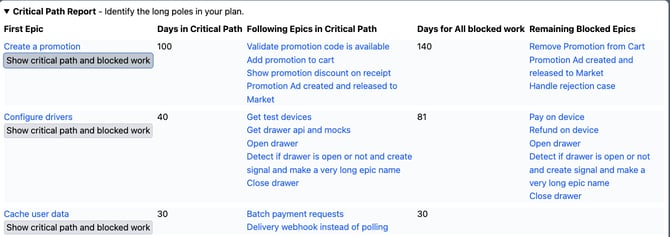
The report shows the critical paths in order:
First Epic - The first epic on the critical path
Days in Critical Path - How many total working days across all teams will be spent on the critical path
Following Epics in Critical Path - The epics after the first epic that are on the critical path
Days for All blocked work - The total amount of days blocked by the first epic, including epics that are not on the critical path
Remaining Blocked Epics - Epics blocked by the first epic that are not on the critical path
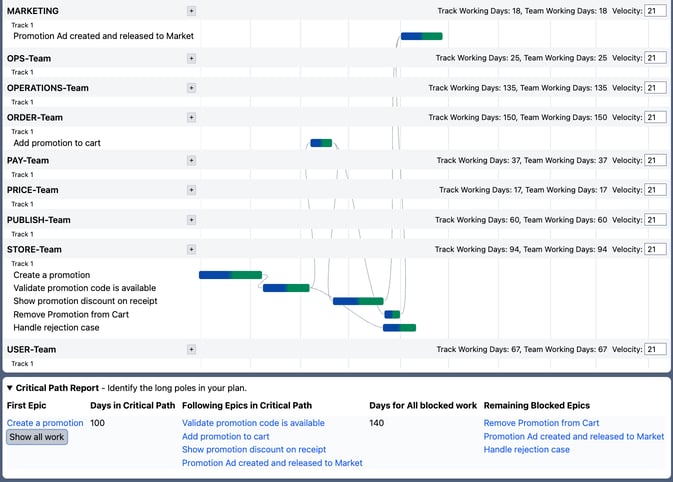
Clicking the Show critical path and blocked work issue will show all epics blocked the the first epic on the critical path:
Loading the right epics
You can load all ready initiatives and their epics that are not done with:

Primary JQL:
status = ready and type = InitiativeChildren JQL:
statusCategory != Done
Reporting Critical Path Risks
When reporting critical paths on a large program, it’s important to recognize you can’t address every risk. You want to focus on only the largest because those are where you might have the most impact ( https://en.wikipedia.org/wiki/Amdahl%27s_law ) So identify a number of critical paths you will take a look at and how frequently you will look at risk.
Documenting the critical path risks is often as simple as performing the following for your top critical paths:
Identify the initiative, epic and teams involved with the critical path.
Identify the epics that might have the most room for improvement: Large, low-confidence epics that are blocking downstream epics.
Followup Actions
It might look like:
Days in Critical Path / All blocked work | Initiatives and Teams | Risky Epics | Followup |
|---|---|---|---|
100 / 140 | ITSY-12 Create a promotion |
| |
40 / 81 |
|
Team Risks
There are two places to identify team risks:
The autoscheduler’s
team working daystotal.Jira’s capacity report
AutoSchduler Team Working Days
The AutoScheduler reports how many total team working days it sees for each team.
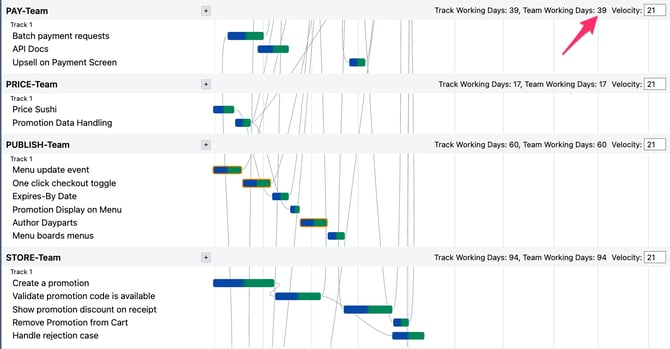
This value can be used to identify which team has the most amount of work for a given collection of epics.
Jira Capacity Report
The Jira Capacity view of Plans can show when a team has too many epics for a sprint.
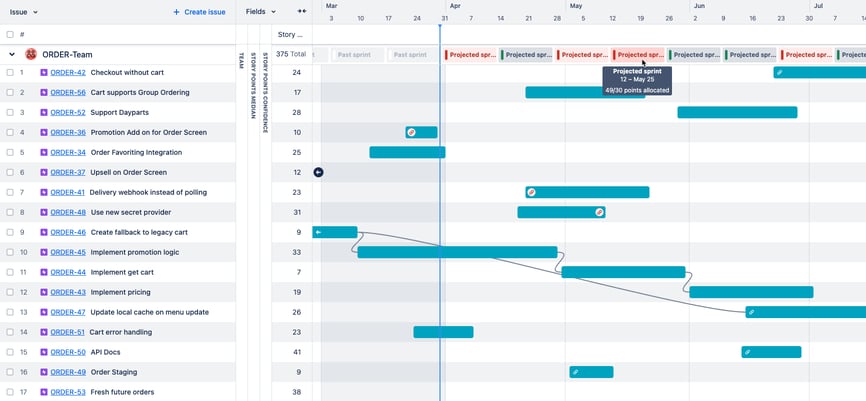
It’s important to keep epics prioritized. Otherwise, it’s hard to know which epic should be moved out of the sprint.
Reporting on Team Risks
For each risky team:
List the total days of work they have
List the largest epics and initiatives they are part of, and the confidence of the epics
List any sprints that are significantly over capacitated
List follow-up actions items to reduce risk
Team | Risky Initiative / Epics | Risky Sprints | Follow up |
|---|---|---|---|
Order 120 days | Sprint 22 in Late May |
| |
BUY 100 days |
|