We have a plugin that can adjust story points automatically based on confidence.
Here’s how to set it up.
Import the Rule
Download the
adjust-story-points.jsonfile:
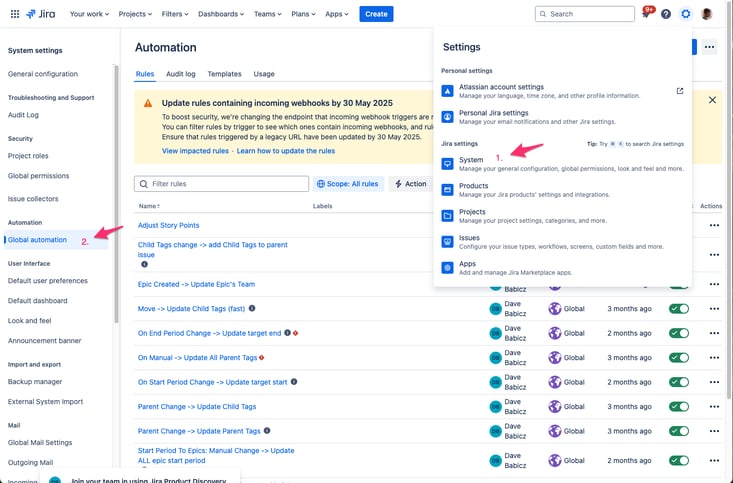
Go to global automation
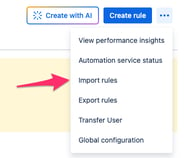
Select import rules:
Identify your Story points median and Confidence field ids
Go to the
Custom Fieldsscreen: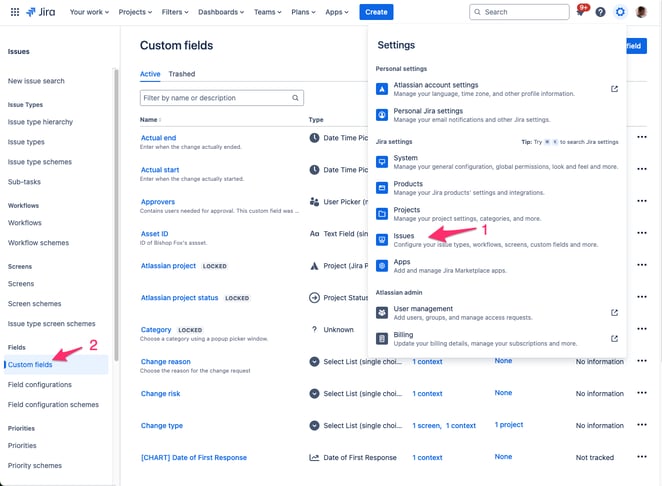
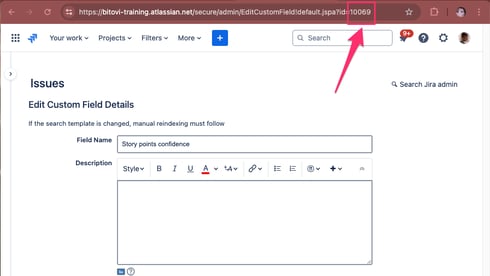
Find your field and click edit details:
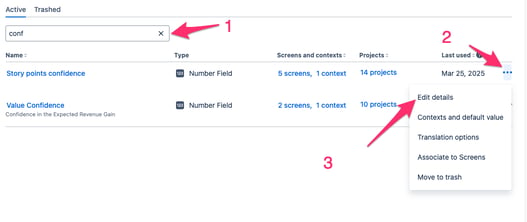
Find the ID in the URL (and write it down):
Configure the rule
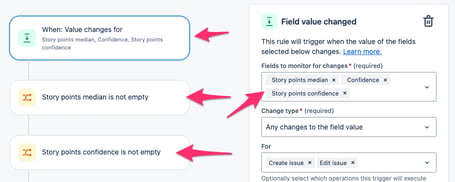
Make sure the right fields are selected for the first three steps of the automation.
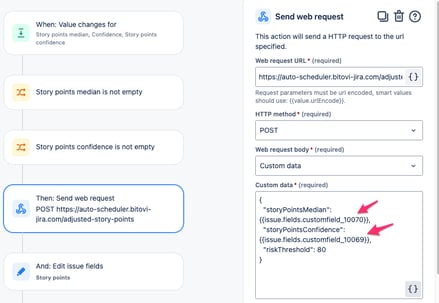
Use the right custom field ids for story points median and confidence:
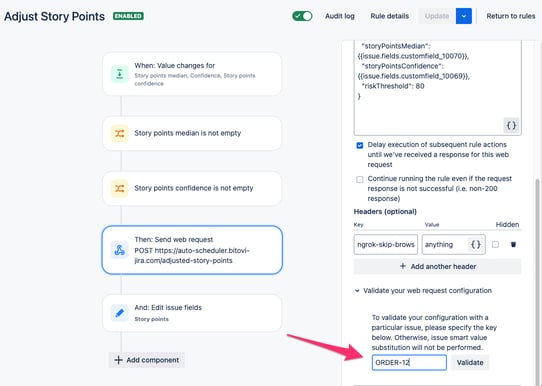
Validate the automation is working by testing on an epic that has story points median and confidence set:
Make sure the automation is setting the right story points field:
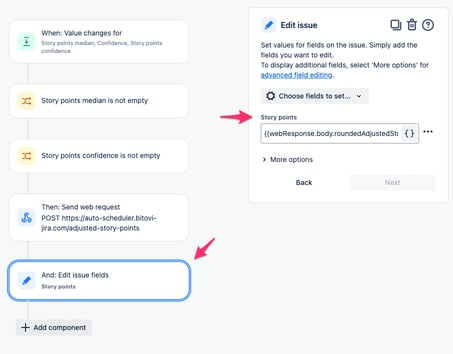
WARNING, it might clear out the value. It is
{{webResponse.body.roundedAdjustedStoryPoints}}.Save and turn on the automation.

Test the automation
Change an epic’s
story points medianorconfidencefield. See ifstory pointsgets updated.