---
title: Bitovi Academy - Integrating Maps
description: Learn how to integrate Google Maps into your React Native application.
---
- 
[AI implementation](https://www.bitovi.com/services/ai-consulting?hsLang=en-us)
- 
[Systems engineering](https://www.bitovi.com/services/systems-engineering-consulting?hsLang=en-us)
- 
[Project management](https://www.bitovi.com/services/agile-project-management-consulting?hsLang=en-us)
- 
[Product design](https://www.bitovi.com/services/product-design-consulting?hsLang=en-us)
- 
[Frontend development](https://www.bitovi.com/services/frontend-development-consulting?hsLang=en-us)
- [View more
→
](https://www.bitovi.com/digital-consulting-services?hsLang=en-us)
We're Experts in...
- [JavaScript](https://www.bitovi.com/services/frontend/javascript-consulting?hsLang=en-us)
- [AI training](https://www.bitovi.com/ai-training-for-software-engineers?hsLang=en-us)
- [Angular](https://www.bitovi.com/services/frontend/angular-consulting?hsLang=en-us)
- [Design Systems](https://www.bitovi.com/services/axure-figma-migration?hsLang=en-us)
- [React](https://www.bitovi.com/services/frontend/react-consulting?hsLang=en-us)
- [Temporal](https://www.bitovi.com/services/backend/temporal-consulting?hsLang=en-us)
- [React Native](https://www.bitovi.com/services/frontend/react-consulting/react-native?hsLang=en-us)
- [Node.js](https://www.bitovi.com/services/backend/nodejs-consulting-1?hsLang=en-us)
Showcase
[View case study](https://www.bitovi.com/en/bitovi-yum-case-study?hsLang=en-us)
More Projects
- [](https://www.bitovi.com/web-application-consulting-work/levis-ecommerce-responsive-redesign?hsLang=en-us)
- [](https://design.bitovi.com/christies)
- [](https://www.bitovi.com/ux-design-consulting/ux-case-studies/bafs-ppp?hsLang=en-us)
- [View more
→
](https://www.bitovi.com/our-software-consulting-work?hsLang=en-us)
Open Source Tools
We build powerful tools and open source them to support the community.
[See what we've built →](https://www.bitovi.com/open-source?hsLang=en-us)
- [
BlogWe post about perfecting software delivery
](https://bitovi.com/blog)
- [
PartnershipsLearn about Bitovi's technology partners
](https://www.bitovi.com/partnerships?hsLang=en-us)
- [
AcademyFree courses to build delivery skills
](https://www.bitovi.com/academy/?hsLang=en-us)
- [
Open source toolsUse our tools or contribute to our open source mission.
](https://www.bitovi.com/open-source?hsLang=en-us)
Let's Connect
- [
Discord
](https://discord.gg/J7ejFsZnJ4)
- [
LinkedIn
](https://www.linkedin.com/company/bitovi/)
- [
GitHub
](https://github.com/bitovi/)

Name *
Work Email *
Phone
What's your project?
Send
### Contact Us
(312) 620-0386contact@bitovi.com
- [ Advanced JavaScript ](https://www.bitovi.com/academy/learn-advanced-javascript.html?hsLang=en-us)
- [ DOM and jQuery ](https://www.bitovi.com/academy/learn-dom-jquery.html?hsLang=en-us)
- [ Debug JavaScript ](https://www.bitovi.com/academy/learn-to-debug-javascript.html?hsLang=en-us)
- [ Learn TypeScript ](https://www.bitovi.com/academy/learn-typescript.html?hsLang=en-us)
- [ Learn React Native ](https://www.bitovi.com/academy/learn-react-native.html?hsLang=en-us)
- [ Introduction to React Native ](https://www.bitovi.com/academy/learn-react-native/intro-to-react-native.html?hsLang=en-us)
- [ Setting Up Your Environment ](https://www.bitovi.com/academy/learn-react-native/setting-up-your-environment.html?hsLang=en-us)
- [ Creating a New Application ](https://www.bitovi.com/academy/learn-react-native/creating-a-new-app.html?hsLang=en-us)
- [ Introduction to JSX ](https://www.bitovi.com/academy/learn-react-native/intro-to-jsx.html?hsLang=en-us)
- [ Introduction to Testing ](https://www.bitovi.com/academy/learn-react-native/intro-to-testing.html?hsLang=en-us)
- [ Building Custom Components ](https://www.bitovi.com/academy/learn-react-native/building-custom-components.html?hsLang=en-us)
- [ Debugging and DevTools ](https://www.bitovi.com/academy/learn-react-native/debugging-devtools.html?hsLang=en-us)
- [ Styling in React Native ](https://www.bitovi.com/academy/learn-react-native/styling.html?hsLang=en-us)
- [ Using React Context ](https://www.bitovi.com/academy/learn-react-native/react-context.html?hsLang=en-us)
- [ Managing State with useState ](https://www.bitovi.com/academy/learn-react-native/managing-state.html?hsLang=en-us)
- [ Navigation in React Native ](https://www.bitovi.com/academy/learn-react-native/navigation.html?hsLang=en-us)
- [ Storing State in Navigation Parameters ](https://www.bitovi.com/academy/learn-react-native/navigation-params.html?hsLang=en-us)
- [ Making HTTP Requests ](https://www.bitovi.com/academy/learn-react-native/making-http-requests.html?hsLang=en-us)
- [ Handling User Inputs ](https://www.bitovi.com/academy/learn-react-native/user-inputs.html?hsLang=en-us)
- [ Using Async Storage ](https://www.bitovi.com/academy/learn-react-native/using-asyncstorage.html?hsLang=en-us)
- [ Security and Authentication ](https://www.bitovi.com/academy/learn-react-native/security-and-auth.html?hsLang=en-us)
- [ Adding Offline Support ](https://www.bitovi.com/academy/learn-react-native/offline-support.html?hsLang=en-us)
- [ Integrating Maps ](https://www.bitovi.com/academy/learn-react-native/google-maps.html?hsLang=en-us)
- [ Performance and Optimization ](https://www.bitovi.com/academy/learn-react-native/performance-optimization.html?hsLang=en-us)
- [ Building React Native Apps ](https://www.bitovi.com/academy/learn-react-native/building.html?hsLang=en-us)
- [ Publishing and Updating ](https://www.bitovi.com/academy/learn-react-native/publishing-and-updating.html?hsLang=en-us)
- [ Learn Web Components ](https://www.bitovi.com/academy/learn-web-components.html?hsLang=en-us)
- [ Agile Program Management With Jira ](https://www.bitovi.com/academy/learn-agile-program-management-with-jira.html?hsLang=en-us)
- [ Learn RxJS ](https://www.bitovi.com/academy/learn-rxjs.html?hsLang=en-us)
- [ Giving a Training ](https://www.bitovi.com/academy/training.html?hsLang=en-us)
- [ Learn Technology Consulting ](https://www.bitovi.com/academy/learn-technology-consulting.html?hsLang=en-us)
- [ Learn React ](https://www.bitovi.com/academy/learn-react.html?hsLang=en-us)
- [ Learn NgRx ](https://www.bitovi.com/academy/learn-ngrx.html?hsLang=en-us)
- [ Learn Graphql ](https://www.bitovi.com/academy/learn-graphql.html?hsLang=en-us)
- [ Learn Docker ](https://www.bitovi.com/academy/learn-docker.html?hsLang=en-us)
- [ Learn CanJS ](https://www.bitovi.com/academy/learn-canjs.html?hsLang=en-us)
- [ Learn Angular ](https://www.bitovi.com/academy/learn-angular.html?hsLang=en-us)
- [ Advanced TypeScript ](https://www.bitovi.com/academy/advanced-typescript.html?hsLang=en-us)
[View More Courses](https://www.bitovi.com/academy/#courses) [ ]
# Integrating Maps `page`
Learn how to integrate Google Maps into your React Native application.
## Overview
In this section, you will:
- Render Google Maps.
- Store secrets with Gradle.
- Configure the Android Manifest file.
- Add markers to a map.
## Objective 1: Add a map view
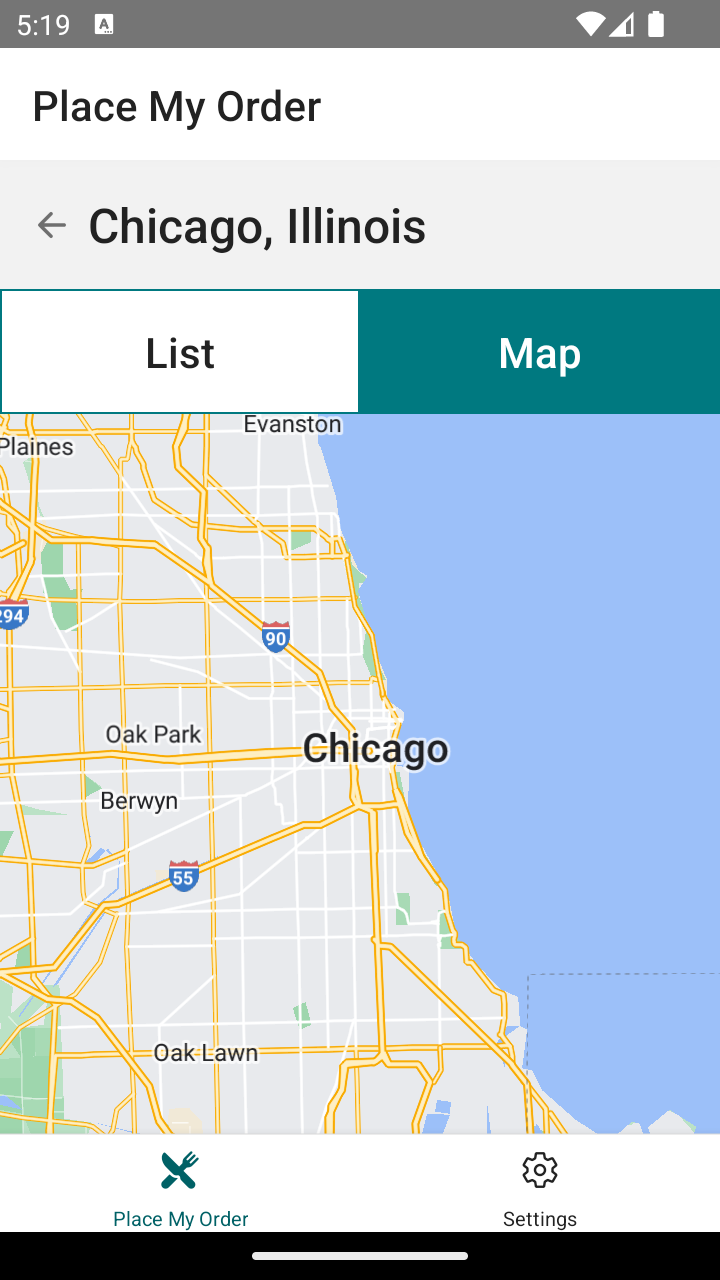
A list of restaurants is a good start, but showing them on a map would make it easier to visualize where they are.
Let’s start by adding a map to the application. We’ll add a `Tab` component to switch between the List and Map views.
### Rendering Google Maps
To use the Google Maps API, you will need to set up a [Google Maps API key](https://developers.google.com/maps/documentation/javascript/get-api-key).
In this section, we will be using the [`react-native-maps`](https://www.npmjs.com/package/react-native-maps) package to integrate Google Maps into our application. This library provides several React Native components such as maps, polygons, markers, and more that can be used to build maps on both iOS and Android. For the purpose of this course, we will focus on using the map and marker components.
```
import MapView, { PROVIDER_GOOGLE } from "react-native-maps"
function Map() {
return (
)
}
```
The `MapView` component is the main component that we will be using to render the map. Because we are using a React Native library, we will later be able to pass child components to the `MapView` component to render `Markers` and other map elements.
The component takes several props, but the most important ones are:
- `style`: The regular `style` prop applied to other compoennts.
- `provider`: The map provider. In this case, we are using Google Maps.
- `loadingEnabled`: Whether to show a loading indicator while the map is loading.
- `initialRegion`: An object that contains coordinates for the initial map region. The object should contain:
- `latitude` and `longitude`: the coordinates of the center of the map.
- `latitudeDelta` and `longitudeDelta`: the vertical and horizontal zoom levels of the map.
### Storing secrets with Gradle
Gradle is a powerful build system used in Android development. It automates the building, testing, and deployment of your app.
In a React Native project, you’ll encounter two key Gradle files:
- `android/build.gradle` (project level): Located at the root of your android directory, it defines build configurations and dependencies that apply to all modules in your project.
- `android/app/build.gradle` (app level): Located in `android/app`, it specifies configurations for the app module, including dependencies, SDK versions, and build types.
Gradle allows you to define how your project is structured, manage dependencies, and configure the build process in a flexible and customizable way.
#### Using `secrets-gradle-plugin`
Managing sensitive information like API keys securely is critical in mobile app development. The [`secrets-gradle-plugin`](https://github.com/google/secrets-gradle-plugin) helps you handle such secrets without exposing them in your source code.
In our application, we will add a dependency to the project-level Gradle file:
```
buildscript {
ext {
buildToolsVersion = "34.0.0"
minSdkVersion = 23
compileSdkVersion = 34
targetSdkVersion = 34
ndkVersion = "26.1.10909125"
kotlinVersion = "1.9.22"
}
repositories {
google()
mavenCentral()
}
dependencies {
classpath("com.android.tools.build:gradle")
classpath("com.facebook.react:react-native-gradle-plugin")
classpath("org.jetbrains.kotlin:kotlin-gradle-plugin")
classpath("com.google.android.libraries.mapsplatform.secrets-gradle-plugin:secrets-gradle-plugin:2.0.1")
}
}
apply plugin: "com.facebook.react.rootproject"
```
…then apply it in the app-level Gradle file:
```
apply plugin: "com.android.application"
apply plugin: "org.jetbrains.kotlin.android"
apply plugin: "com.facebook.react"
apply plugin: "com.google.android.libraries.mapsplatform.secrets-gradle-plugin"
/**
* This is the configuration block to customize your React Native Android app.
* By default you don't need to apply any configuration, just uncomment the lines you need.
*/
react {
/* Folders */
// The root of your project, i.e. where "package.json" lives. Default is '..'
// root = file("../")
// The folder where the react-native NPM package is. Default is ../node_modules/react-native
// reactNativeDir = file("../node_modules/react-native")
// The folder where the react-native Codegen package is. Default is ../node_modules/@react-native/codegen
// codegenDir = file("../node_modules/@react-native/codegen")
// The cli.js file which is the React Native CLI entrypoint. Default is ../node_modules/react-native/cli.js
// cliFile = file("../node_modules/react-native/cli.js")
/* Variants */
// The list of variants to that are debuggable. For those we're going to
// skip the bundling of the JS bundle and the assets. By default is just 'debug'.
// If you add flavors like lite, prod, etc. you'll have to list your debuggableVariants.
// debuggableVariants = ["liteDebug", "prodDebug"]
/* Bundling */
// A list containing the node command and its flags. Default is just 'node'.
// nodeExecutableAndArgs = ["node"]
//
// The command to run when bundling. By default is 'bundle'
// bundleCommand = "ram-bundle"
//
// The path to the CLI configuration file. Default is empty.
// bundleConfig = file(../rn-cli.config.js)
//
// The name of the generated asset file containing your JS bundle
// bundleAssetName = "MyApplication.android.bundle"
//
// The entry file for bundle generation. Default is 'index.android.js' or 'index.js'
// entryFile = file("../js/MyApplication.android.js")
//
// A list of extra flags to pass to the 'bundle' commands.
// See https://github.com/react-native-community/cli/blob/main/docs/commands.md#bundle
// extraPackagerArgs = []
/* Hermes Commands */
// The hermes compiler command to run. By default it is 'hermesc'
// hermesCommand = "$rootDir/my-custom-hermesc/bin/hermesc"
//
// The list of flags to pass to the Hermes compiler. By default is "-O", "-output-source-map"
// hermesFlags = ["-O", "-output-source-map"]
}
/**
* Set this to true to Run Proguard on Release builds to minify the Java bytecode.
*/
def enableProguardInReleaseBuilds = false
/**
* The preferred build flavor of JavaScriptCore (JSC)
*
* For example, to use the international variant, you can use:
* `def jscFlavor = 'org.webkit:android-jsc-intl:+'`
*
* The international variant includes ICU i18n library and necessary data
* allowing to use e.g. `Date.toLocaleString` and `String.localeCompare` that
* give correct results when using with locales other than en-US. Note that
* this variant is about 6MiB larger per architecture than default.
*/
def jscFlavor = 'org.webkit:android-jsc:+'
android {
ndkVersion rootProject.ext.ndkVersion
buildToolsVersion rootProject.ext.buildToolsVersion
compileSdk rootProject.ext.compileSdkVersion
namespace "com.placemyorder"
defaultConfig {
applicationId "com.placemyorder"
minSdkVersion rootProject.ext.minSdkVersion
targetSdkVersion rootProject.ext.targetSdkVersion
versionCode 1
versionName "1.0"
}
signingConfigs {
debug {
storeFile file('debug.keystore')
storePassword 'android'
keyAlias 'androiddebugkey'
keyPassword 'android'
}
}
buildTypes {
debug {
signingConfig signingConfigs.debug
}
release {
// Caution! In production, you need to generate your own keystore file.
// see https://reactnative.dev/docs/signed-apk-android.
signingConfig signingConfigs.debug
minifyEnabled enableProguardInReleaseBuilds
proguardFiles getDefaultProguardFile("proguard-android.txt"), "proguard-rules.pro"
}
}
}
dependencies {
// The version of react-native is set by the React Native Gradle Plugin
implementation("com.facebook.react:react-android")
if (hermesEnabled.toBoolean()) {
implementation("com.facebook.react:hermes-android")
} else {
implementation jscFlavor
}
}
secrets {
// Optionally specify a different file name containing your secrets.
// The plugin defaults to "local.properties"
propertiesFileName = "secrets.properties"
// A properties file containing default secret values. This file can be
// checked in version control.
defaultPropertiesFileName = "local.defaults.properties"
// Configure which keys should be ignored by the plugin by providing regular expressions.
// "sdk.dir" is ignored by default.
ignoreList.add("keyToIgnore") // Ignore the key "keyToIgnore"
ignoreList.add("sdk.*") // Ignore all keys matching the regexp "sdk.*"
}
apply from: file("../../node_modules/@react-native-community/cli-platform-android/native_modules.gradle"); applyNativeModulesAppBuildGradle(project)
apply from: file("../../node_modules/react-native-vector-icons/fonts.gradle")
```
### Configuring the Android Manifest file
The Android Manifest file is an XML file that contains important information about our application such as permissions, activities and services, configuration settings, and more.
The Android manifest file (`AndroidManifest.xml`) is a crucial part of any Android application. It resides in the `android/app/src/main/` directory of your React Native project. This XML file provides essential information to the Android operating system about your app, such as:
- **Package name:** Unique identifier for your app.
- **Components:** Declares components of your app (activities, services, broadcast receivers, and content providers).
- **Permissions:** Specifies permissions your app needs (e.g., internet access, camera usage).
- **App metadata:** Includes additional information like themes, icons, and minimum API levels.
In essence, the manifest file acts as a roadmap for the Android OS to understand and manage your app correctly.
```
```
### Setup 1
✏️ Install the new dependency:
```
npm install react-native-maps@1.15.1
```
✏️ Update **.gitignore** to be:
```
# OSX
#
.DS_Store
# Windows
#
Thumbs.db
# Xcode
#
build/
*.pbxuser
!default.pbxuser
*.mode1v3
!default.mode1v3
*.mode2v3
!default.mode2v3
*.perspectivev3
!default.perspectivev3
xcuserdata
*.xccheckout
*.moved-aside
DerivedData
*.hmap
*.ipa
*.xcuserstate
**/.xcode.env.local
# Android/IntelliJ
#
build/
.idea
.gradle
local.properties
*.iml
*.hprof
.cxx/
*.keystore
!debug.keystore
# node.js
#
node_modules/
npm-debug.log
yarn-error.log
# fastlane
#
# It is recommended to not store the screenshots in the git repo. Instead, use fastlane to re-generate the
# screenshots whenever they are needed.
# For more information about the recommended setup visit:
# https://docs.fastlane.tools/best-practices/source-control/
**/fastlane/report.xml
**/fastlane/Preview.html
**/fastlane/screenshots
**/fastlane/test_output
# Bundle artifact
*.jsbundle
*.tsbuildinfo
# Environment variables
.env
# Place My Order API
/db-data
# Ruby / CocoaPods
**/Pods/
/vendor/bundle/
# Secrets
android/secrets.properties
# Temporary files created by Metro to check the health of the file watcher
.metro-health-check*
# testing
/coverage
# Yarn
.yarn/*
!.yarn/patches
!.yarn/plugins
!.yarn/releases
!.yarn/sdks
!.yarn/versions
```
✏️ Create **android/local.defaults.properties** and update it to be:
```
GOOGLE_MAPS_API_KEY=INVALID_API_KEY
```
✏️ Duplicate **android/local.defaults.properties** to **android/secrets.properties** in your project.
It’s always a good idea to keep a `local.defaults.properties` file up to date (and committed to git) in your project, then include the actual secrets in your local `secrets.properties` file (and not committed to git).
✏️ Update **android/secrets.properties** to include your `GOOGLE_MAPS_API_KEY` key.
Replace the `INVALID_API_KEY` text that’s currently in the file with your key.
✏️ Update **android/build.gradle** to be:
```
buildscript {
ext {
buildToolsVersion = "34.0.0"
minSdkVersion = 23
compileSdkVersion = 34
targetSdkVersion = 34
ndkVersion = "26.1.10909125"
kotlinVersion = "1.9.22"
}
repositories {
google()
mavenCentral()
}
dependencies {
classpath("com.android.tools.build:gradle")
classpath("com.facebook.react:react-native-gradle-plugin")
classpath("org.jetbrains.kotlin:kotlin-gradle-plugin")
classpath("com.google.android.libraries.mapsplatform.secrets-gradle-plugin:secrets-gradle-plugin:2.0.1")
}
}
apply plugin: "com.facebook.react.rootproject"
```
✏️ Update **android/app/build.gradle** to be:
```
apply plugin: "com.android.application"
apply plugin: "org.jetbrains.kotlin.android"
apply plugin: "com.facebook.react"
apply plugin: "com.google.android.libraries.mapsplatform.secrets-gradle-plugin"
/**
* This is the configuration block to customize your React Native Android app.
* By default you don't need to apply any configuration, just uncomment the lines you need.
*/
react {
/* Folders */
// The root of your project, i.e. where "package.json" lives. Default is '..'
// root = file("../")
// The folder where the react-native NPM package is. Default is ../node_modules/react-native
// reactNativeDir = file("../node_modules/react-native")
// The folder where the react-native Codegen package is. Default is ../node_modules/@react-native/codegen
// codegenDir = file("../node_modules/@react-native/codegen")
// The cli.js file which is the React Native CLI entrypoint. Default is ../node_modules/react-native/cli.js
// cliFile = file("../node_modules/react-native/cli.js")
/* Variants */
// The list of variants to that are debuggable. For those we're going to
// skip the bundling of the JS bundle and the assets. By default is just 'debug'.
// If you add flavors like lite, prod, etc. you'll have to list your debuggableVariants.
// debuggableVariants = ["liteDebug", "prodDebug"]
/* Bundling */
// A list containing the node command and its flags. Default is just 'node'.
// nodeExecutableAndArgs = ["node"]
//
// The command to run when bundling. By default is 'bundle'
// bundleCommand = "ram-bundle"
//
// The path to the CLI configuration file. Default is empty.
// bundleConfig = file(../rn-cli.config.js)
//
// The name of the generated asset file containing your JS bundle
// bundleAssetName = "MyApplication.android.bundle"
//
// The entry file for bundle generation. Default is 'index.android.js' or 'index.js'
// entryFile = file("../js/MyApplication.android.js")
//
// A list of extra flags to pass to the 'bundle' commands.
// See https://github.com/react-native-community/cli/blob/main/docs/commands.md#bundle
// extraPackagerArgs = []
/* Hermes Commands */
// The hermes compiler command to run. By default it is 'hermesc'
// hermesCommand = "$rootDir/my-custom-hermesc/bin/hermesc"
//
// The list of flags to pass to the Hermes compiler. By default is "-O", "-output-source-map"
// hermesFlags = ["-O", "-output-source-map"]
}
/**
* Set this to true to Run Proguard on Release builds to minify the Java bytecode.
*/
def enableProguardInReleaseBuilds = false
/**
* The preferred build flavor of JavaScriptCore (JSC)
*
* For example, to use the international variant, you can use:
* `def jscFlavor = 'org.webkit:android-jsc-intl:+'`
*
* The international variant includes ICU i18n library and necessary data
* allowing to use e.g. `Date.toLocaleString` and `String.localeCompare` that
* give correct results when using with locales other than en-US. Note that
* this variant is about 6MiB larger per architecture than default.
*/
def jscFlavor = 'org.webkit:android-jsc:+'
android {
ndkVersion rootProject.ext.ndkVersion
buildToolsVersion rootProject.ext.buildToolsVersion
compileSdk rootProject.ext.compileSdkVersion
namespace "com.placemyorder"
defaultConfig {
applicationId "com.placemyorder"
minSdkVersion rootProject.ext.minSdkVersion
targetSdkVersion rootProject.ext.targetSdkVersion
versionCode 1
versionName "1.0"
}
signingConfigs {
debug {
storeFile file('debug.keystore')
storePassword 'android'
keyAlias 'androiddebugkey'
keyPassword 'android'
}
}
buildTypes {
debug {
signingConfig signingConfigs.debug
}
release {
// Caution! In production, you need to generate your own keystore file.
// see https://reactnative.dev/docs/signed-apk-android.
signingConfig signingConfigs.debug
minifyEnabled enableProguardInReleaseBuilds
proguardFiles getDefaultProguardFile("proguard-android.txt"), "proguard-rules.pro"
}
}
}
dependencies {
// The version of react-native is set by the React Native Gradle Plugin
implementation("com.facebook.react:react-android")
if (hermesEnabled.toBoolean()) {
implementation("com.facebook.react:hermes-android")
} else {
implementation jscFlavor
}
}
secrets {
// Optionally specify a different file name containing your secrets.
// The plugin defaults to "local.properties"
propertiesFileName = "secrets.properties"
// A properties file containing default secret values. This file can be
// checked in version control.
defaultPropertiesFileName = "local.defaults.properties"
// Configure which keys should be ignored by the plugin by providing regular expressions.
// "sdk.dir" is ignored by default.
ignoreList.add("keyToIgnore") // Ignore the key "keyToIgnore"
ignoreList.add("sdk.*") // Ignore all keys matching the regexp "sdk.*"
}
apply from: file("../../node_modules/@react-native-community/cli-platform-android/native_modules.gradle"); applyNativeModulesAppBuildGradle(project)
apply from: file("../../node_modules/react-native-vector-icons/fonts.gradle")
```
✏️ Update **android/app/src/main/AndroidManifest.xml** to be:
```
```
✏️ Terminate the existing dev server and start it again:
```
npm run start
```
✏️ Create **src/shared/components/Tabs/Tabs.tsx** and update it to be:
```
import Box from "@shared/design/Box"
import { Theme, useTheme } from "@shared/design/theme"
import Typography from "@shared/design/Typography"
import { Pressable, StyleSheet } from "react-native"
export interface TabsProps {
options: Array<{
label: string
value: string
}>
value: string
onChange: (value: string) => void
}
const Tabs: React.FC = ({ options, value: activeTab, onChange }) => {
const theme = useTheme()
const styles = getStyles(theme)
return (
{options.map(({ value, label }) => {
const isActive = value === activeTab
return (
onChange(value)}
style={StyleSheet.compose(styles.tab, isActive && styles.activeTab)}
>
{label}
)
})}
)
}
export default Tabs
function getStyles(theme: Theme) {
return StyleSheet.create({
wrapper: {
flexDirection: "row",
},
tab: {
flex: 1,
alignItems: "center",
padding: theme.spacing.m,
borderWidth: 1,
borderColor: theme.palette.primary.main,
backgroundColor: theme.palette.screen.main,
},
tabText: {
color: theme.palette.screen.contrast,
},
activeTab: {
backgroundColor: theme.palette.primary.main,
},
activeTabText: {
color: theme.palette.primary.contrast,
},
})
}
```
✏️ Create **src/shared/components/Tabs/index.ts** and update it to be:
```
export { default } from "./Tabs"
export * from "./Tabs"
```
✏️ Create **src/screens/RestaurantList/components/List/List.tsx** and update it to be:
```
import { useNavigation } from "@react-navigation/native"
import Button from "@shared/design/Button"
import Screen from "@shared/design/Screen"
import { Restaurant } from "@shared/services/pmo/restaurant"
import { FlatList } from "react-native"
export interface ListProps {
restaurants: Restaurant[]
}
const List: React.FC = ({ restaurants }) => {
const navigation = useNavigation()
return (
(
)}
keyExtractor={(item) => item._id}
/>
)
}
export default List
```
✏️ Create **src/screens/RestaurantList/components/List/index.ts** and update it to be:
```
export { default } from "./List"
export * from "./List"
```
✏️ Create **src/screens/RestaurantList/components/Map/Map.tsx** and update it to be:
```
import { Restaurant } from "@shared/services/pmo/restaurant"
import MapView, { PROVIDER_GOOGLE } from "react-native-maps"
export interface MapProps {
restaurants: Restaurant[]
}
const Map: React.FC = ({ restaurants }) => {
// Exercise: Implement MapView to accept an initialRegion based on the coordinates of one of the restaurants passed.
}
export default Map
```
✏️ Create **src/screens/RestaurantList/components/Map/index.ts** and update it to be:
```
export { default } from "./Map"
export * from "./Map"
```
✏️ Update **src/screens/RestaurantList/RestaurantList.tsx** to be:
```
import { StackScreenProps } from "@react-navigation/stack"
import Loading from "@shared/components/Loading"
import Tabs from "@shared/components/Tabs"
import Box from "@shared/design/Box"
import Screen from "@shared/design/Screen"
import Typography from "@shared/design/Typography"
import { useRestaurants } from "@shared/services/pmo/restaurant"
import { useState } from "react"
import { RestaurantsStackParamList } from "../../App"
import List from "./components/List"
import Map from "./components/Map"
export interface RestaurantListProps
extends StackScreenProps {}
const RestaurantList: React.FC = ({ route }) => {
const { state, city } = route.params
const {
data: restaurants,
error,
isPending,
} = useRestaurants({ state: state.short, city: city.name })
const [tab, setTab] = useState("list")
if (error) {
return (
Error loading restaurants: {error.message}
)
}
if (isPending) {
return
}
return (
<>
{tab === "list" && restaurants && }
{tab === "map" && restaurants && }
)
}
export default RestaurantList
```
### Verify 1
Navigate to the `Maps` tab of the `RestaurantsList` in your emulator and verify that the Map is rendering.

### Exercise 1
For this exercise, implement Google Map’s `MapView` for it to properly render when the `Map` tab is selected.
**Hint:** The `MapView` takes its own `style` prop. As a minimum it needs `minHeight` variable to render. If the view is too small, try adding another variable to increase its size.
```
```
### Solution 1
If you’ve implemented the solution correctly, the Map should be rendering in your application.
Click to see the solution
✏️ Update **src/screens/RestaurantList/components/Map/Map.tsx** to be:
```
import { Restaurant } from "@shared/services/pmo/restaurant"
import MapView, { PROVIDER_GOOGLE } from "react-native-maps"
export interface MapProps {
restaurants: Restaurant[]
}
const Map: React.FC = ({ restaurants }) => {
return (
)
}
export default Map
```
## Objective 2: Add restaurant markers with tooltips to the map
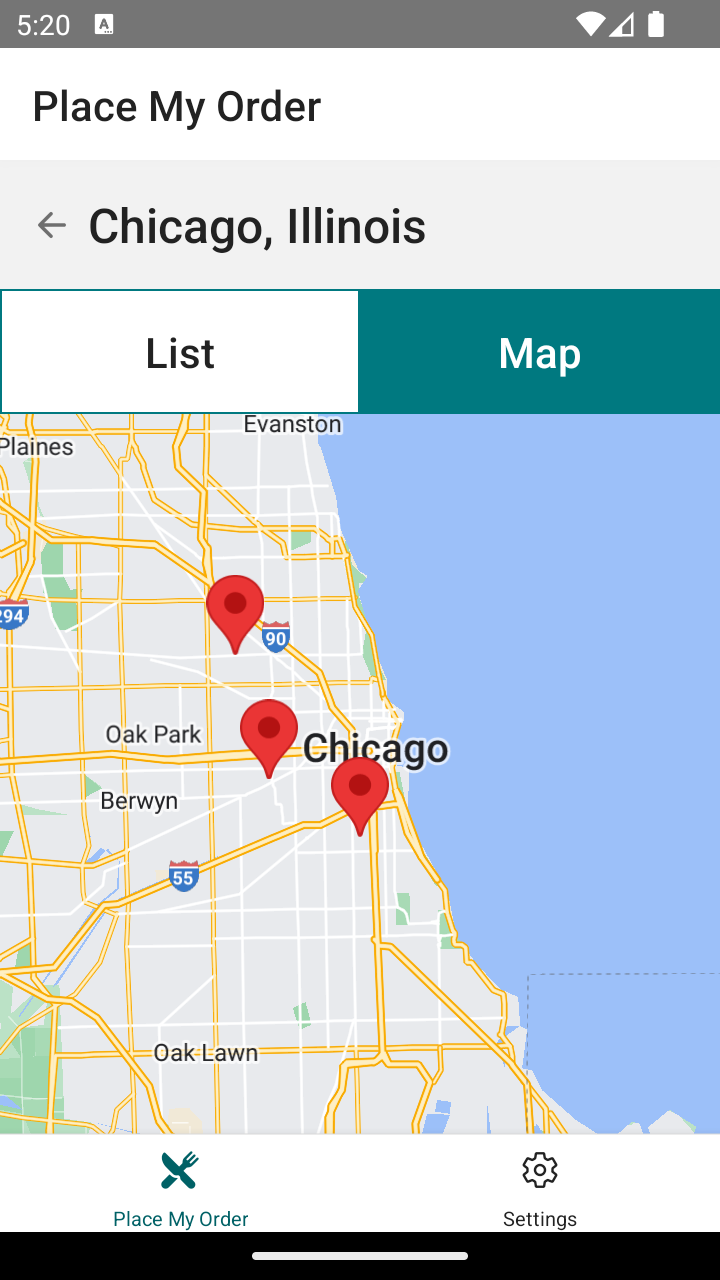
Now that we have a map, let’s add markers for each one of the restaurants. When we tap on them, we will navigate to the restaurant detail page, just like we do in the list view.
### Adding markers to a map
The `Marker` component is used to render a pin on the map. It takes several props, but the most important ones are:
- `coordinate`: The coordinates of the marker.
- `onCalloutPress`: A function that is called when the callout view is pressed.
- `title`: The title of the callout view.
- `description`: A description displayed in the callout view.
The callout view is an info window that is displayed when the marker is tapped.
```
import MapView, { Marker, PROVIDER_GOOGLE } from "react-native-maps"
function MapWithMarker({ initialRegion }) {
return (
{
console.info("Marker was pressed")
}}
title="Title of the Marker"
description="A brief description"
/>
)
}
```
### Setup 2
✏️ Update **src/screens/RestaurantList/components/Map/Map.tsx** to be:
```
import { useNavigation } from "@react-navigation/native"
import { Restaurant } from "@shared/services/pmo/restaurant"
import MapView, { Marker, PROVIDER_GOOGLE } from "react-native-maps"
export interface MapProps {
restaurants: Restaurant[]
}
const Map: React.FC = ({ restaurants }) => {
return (
{/* Exercise: Using the restaurants prop, create a Marker for each restaurant. */}
)
}
export default Map
```
### Verify 2
Navigate to the `Maps` tab of the `RestaurantsList` in your emulator and verify that the Map is rendering.

### Exercise 2
- Using the `restaurants` prop, create a `Marker` for each restaurant.
- Fill out the `coordinate`, `title`, and `description` properties on Marker.
- Use `onCallOutPress` to add `navigate` to the `RestaurantDetails` screen.
### Solution 2
If you’ve implemented the solution correctly, your Map should have Markers based on the coordinates of each Restaurant. Then, when you tap on a marker, it should show its info in a pop-up view. Then, you can tap on the pop-up view to navigate to the restaurant details view.
Click to see the solution
✏️ Update **src/screens/RestaurantList/components/Map/Map.tsx** to be:
```
import { useNavigation } from "@react-navigation/native"
import { Restaurant } from "@shared/services/pmo/restaurant"
import MapView, { Marker, PROVIDER_GOOGLE } from "react-native-maps"
export interface MapProps {
restaurants: Restaurant[]
}
const Map: React.FC = ({ restaurants }) => {
const navigation = useNavigation()
return (
{restaurants.map((restaurant, index) => (
navigation.navigate("RestaurantDetails", {
slug: restaurant.slug,
})
}
/>
))}
)
}
export default Map
```
## Next steps
We’ve accomplished a lot for our React Native App, in order to polish it just a bit more let’s get into some [Performance and Optimization](https://www.bitovi.com/academy/learn-react-native/performance-optimization.html?hsLang=en-us) practices.
###### On this page...
###### Get help
If you need [help](https://discord.gg/J7ejFsZnJ4) with an exercise, please reach out to us on [Discord](https://discord.gg/J7ejFsZnJ4)
If you find a bug, please [create an issue](https://github.com/bitovi/academy/issues/new) or email [contact@bitovi.com](mailto:contact@bitovi.com?Subject=Training%20Suggestion)
## Join the Bitovi Newsletter
Do you want to receive updates about new Bitovi Academy courses, Bitovi open source projects, and dev community news? If so, please provide your email. We won’t spam you or give it away for any reason!
*By providing your email you agree to receive communications from Bitovi*

```json
{
"@context": "http://schema.org",
"@type": "Organization",
"mainEntityOfPage":{
"@type":"WebPage",
"@id":"https://www.bitovi.com/academy/learn-react-native/google-maps.html",
"description": "Learn how to integrate Google Maps into your React Native application.
"
},
"url": "http://bitovi.com",
"logo": "https://www.bitovi.com/hubfs/bitovi-logo-23-1.svg",
"image": "https://www.bitovi.com/hubfs/bitovi-logo-x2.png",
"name": "Bitovi Web App Consulting",
"alternateName": "Bitovi",
"naics": "541511",
"description": "Bitovi is a UX, UI design and front-end JavaScript development consulting company",
"address": {
"@type": "PostalAddress",
"streetAddress": "1134 Pine Tree Lane ",
"addressLocality": "Libertyville",
"addressRegion": "IL",
"addressCountry": "United States",
"postalCode": "60048"
},
"areaServed": {
"@type": "GeoCircle",
"geoMidpoint": {
"@type": "GeoCoordinates",
"latitude": "41.8781",
"longitude": "87.6298"
},
"geoRadius": "5000 km"
},
"telephone": "312-620-0386",
"email": "contact@bitovi.com",
"sameAs": [
"https://www.facebook.com/BitoviLLC/",
"https://twitter.com/bitovi",
"https://www.linkedin.com/company/bitovi"
]
}
```